

Rehab – Typing Test – v1.3
Text Area
Char/s: 0 Char/min: 0 Words/min: 0
Autocomplete settings
Consult Medical Professional
Consult a medical professional before using this typing test as part of your rehabilitation program.
Manual
Quick Start
- Select the difficulty level (F1 – F4) with the function keys or mouse buttons: Simple (F1), Intermediate (F2), Advanced (F3) or Type Test (F4).
- Select Refresh (F5) to show a text from the selected difficulty level.
- Or select a text file name from the pull-down list below the Text Field
- The default difficulty level is the Simple (F1) mode.
- Note the yellow cursor in the top left corner of the text area.
- Type the characters you see at the cursor.
- If you’ve typed the correct chararcter the cursor wil advance to the next character.
- If you’ve typed a wrong character the cursor will stay in place, the expected character shows up in bold red.
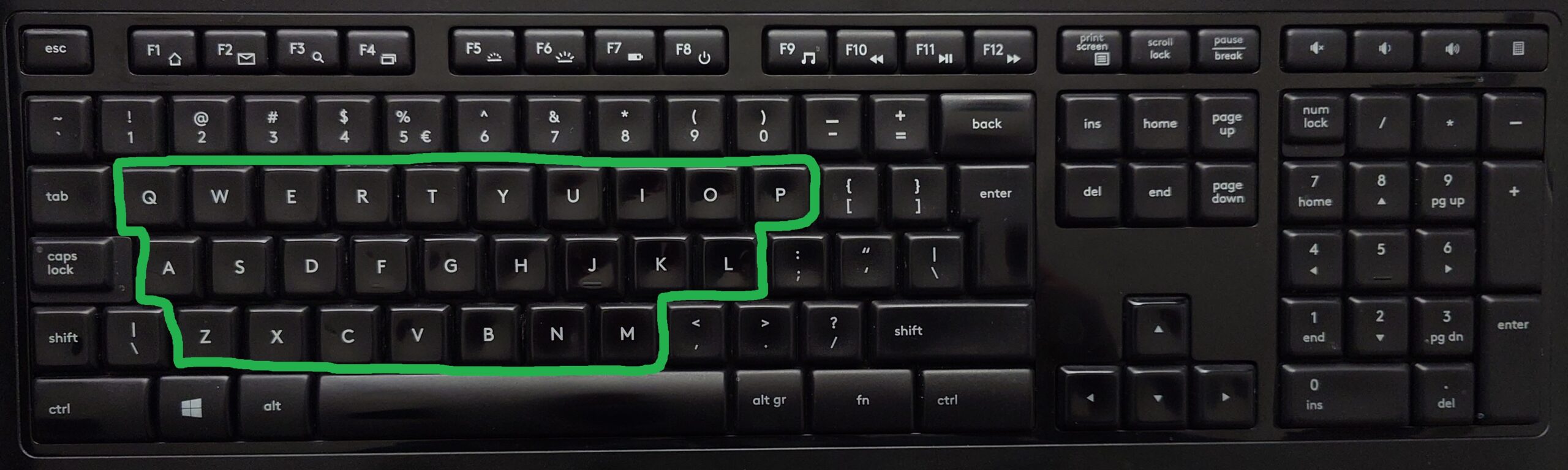
- The Simple (F1) level only focusses one typing the correct letter of the alphabet.
- No need to type spaces, digits or special characters. They will be autocompleted.
- No need to use Shift or Caps Lock. Uppercase is ignored.
- The results like duration, accuracy, characters/second and characters/minute will be displayed once you completed typing the text. During typing they are hidden.
Design Principles
This typing test is designed for people who need to relearn typing during a medical rehabilitation process, e.g. due to loss of fine motor skills in one or both hands caused by physical trauma or neurological damage. Several auto-complete options help avoiding key combinations and far key stretches to match typist’s current typing abbilities.
But in the Type Test mode all auto-completion is switched off and it becomes another regular online typing test.
Prerequisites
- As with most typing tests, best results can be achieved when using a PC or a laptop with a relative large screen, a physical keyboard and mouse. This typing test is not supported on mobile phones or tablets.
- Your browser needs to have Javascript enabled for this to work.
Features
- Pull-down list to select available text files for each difficulty level
- Duration, accuracy and typing speed are displayed when typing a text is completed
- Presets (F1-F4), Refresh (F5) and Auto-complete settings (F6-F10)
- 4 preset modes with different levels of difficulties
- Simple (F1)
- Intermediate (F2)
- Advanced (F3)
- Type Test (F4)
- Presets (F1-F4) selection with the corresponding function key or mouse click
- A refresh option to load the next (randomly chosen) text: Refresh (F5)
- Refresh (F5) triggering on page load, with F5 key and by mouse click
- 5 auto-complete settings that can be toggled by function keys or mouse clicks
- Punctuation (F6)
- Caps (F7)
- Numbers (F8)
- Special Characters (F9)
- Space (F10)
- Auto-complete settings (F6-F10) toggle with the corresponding function key or mouse click
- Cursor doesn’t move and the expected character is shown in bold red if the wrong character is typed
- Auto-scroll for text that is larger than the visible text field when cursor gets near the end of the visible part
Text Field
The text field displays the text to be typed. Note the yellow cursor in the top left corner. It is not blinking. It indicates the next character to type. If characters are auto-completed the cursor will move to the next character to type.
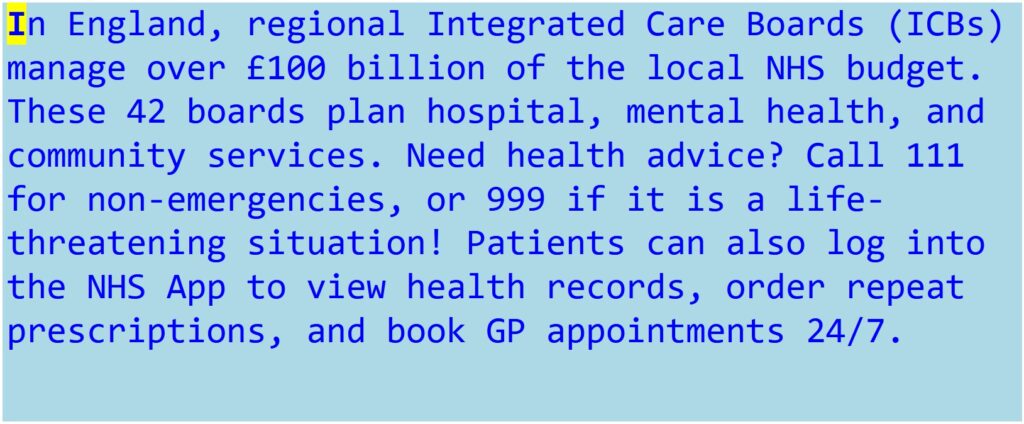
If the wrong character is typed, the cursor stays in place and the expected character will be displayed bold red until the correct character is typed. The remaining text will turn black instead of blue. Correctly typed text will become green.

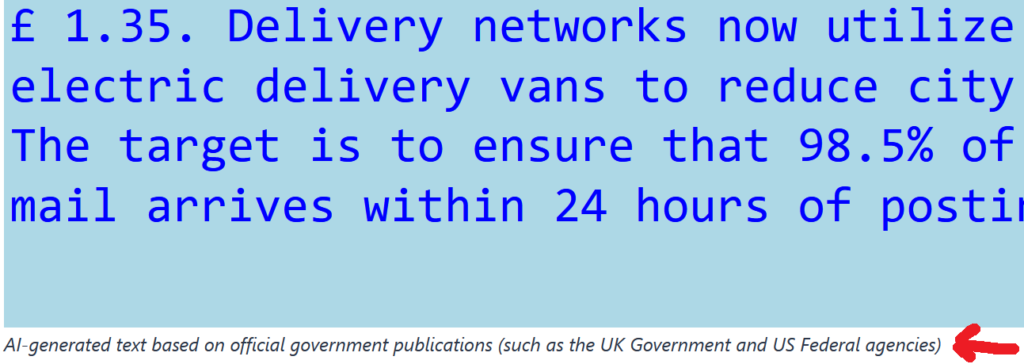
Caption
If available, a caption with a descriptive text regarding the current content in the Text Field is displayed.
Text File Pull-Down List
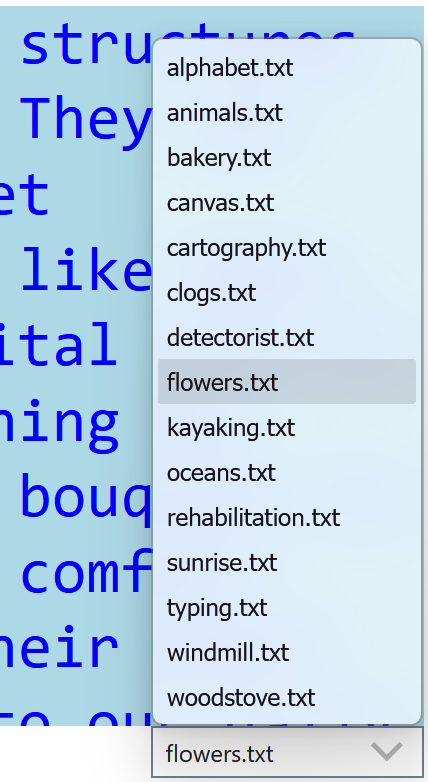
Below the Text Field, a text file pull-down list allows you to select from the available files. There is a different list per difficulty level, that will show after selecting a Difficulty Level (F1-F4) followed by Refresh (F5).
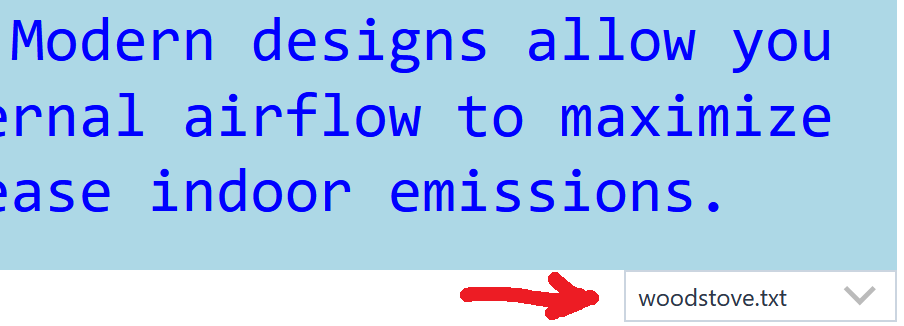
Select a specific text file from the pull-down list to display it in the text field.
Results
Display Values
When the page is first loaded the results are shown with values 0 in red, because no typing occured yet.

During typing this line will disappear. When the last character in the text is typed results are calculated and displayed again, this time in green.

Duration
When the first correct key press is detected a start time () is set. When the last character in the text is typed a end time () is set. The duration () is the end time minus the start time (in milliseconds) divided by 1000 to convert to seconds.
Accuracy
The accuracy percentage () is calculated from the number of correct pressed keys () divided by the total number of pressed keys () mutiplied by hundred.
Note that autocompleted characters are not counted. Only key presses contribute to the accuracy calculation.
Words
The number of words () in the current text.
Characters per Second
The charaters per second () are calculated from the total number of pressed keys () divided by the duration ().
Characters per Minute
The charaters per minute () are the characters per second () times 60.
Words per Minute
The words per minute () are calculated from the number of words () in the current text divided by the duration () (divided by 60 to convert from seconds to minutes).
Preset Buttons
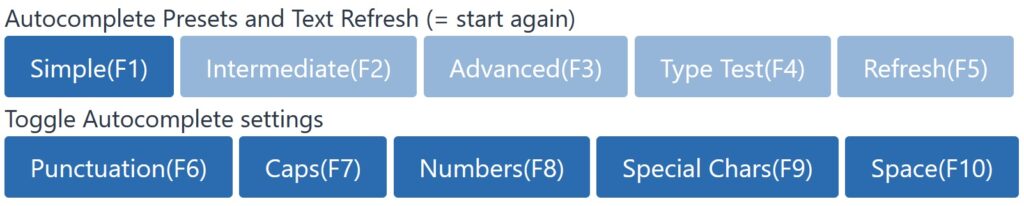
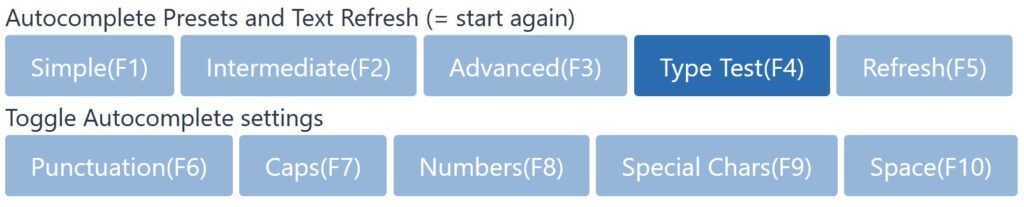
Use F1 – F4 to select a auto-complete preset and set the text difficulty level. If you hover the mouse over any of the buttons the background colour will turn orange.

If you click the button background colour will become (or stay) dark blue. The presets not selected will become light blue.

Simple (F1)
All auto-complete options are on.
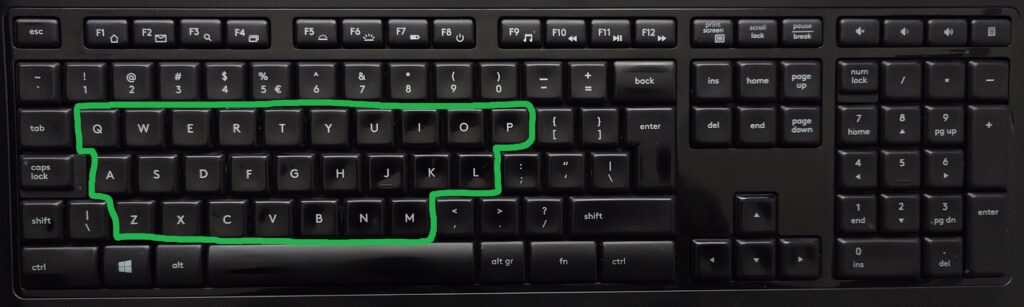
The typist only needs to worry about pressing the key with the correct character from the alphabet and can disregard uppercase.
Intermediate (F2)
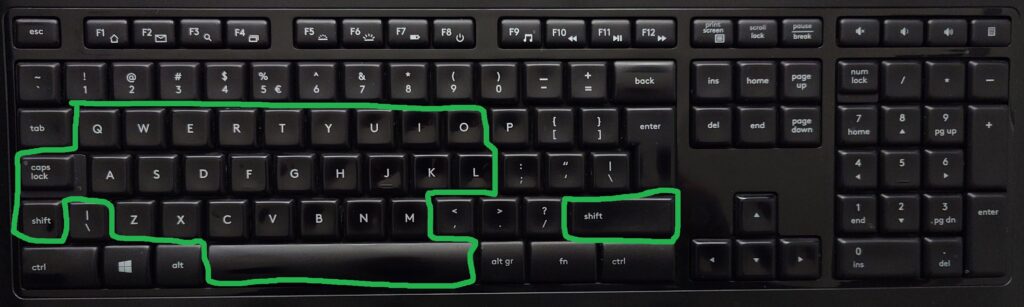
The Caps (F7) and Space (F10) auto-complete options are off.
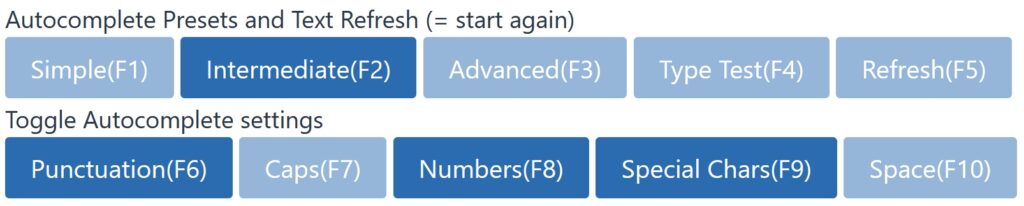
This means that the typist must also use the Shift key (or Caps Lock) for capital characters in the text and the Space Bar for Space.
Advanced (F3)
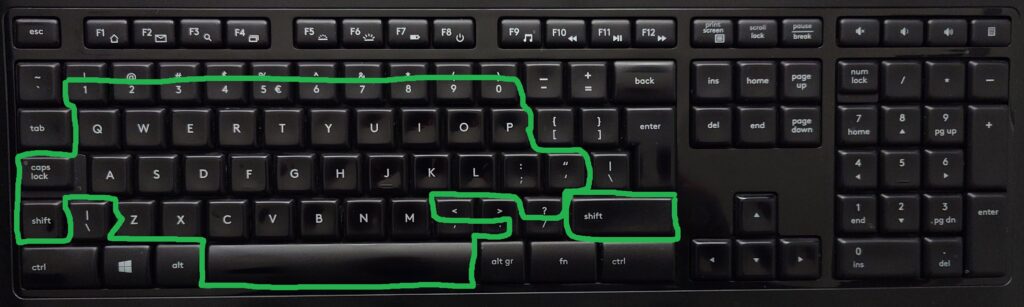
Except for Special Chars (F9), all auto-complete options are off.

This means the typist needs to type punctuation, capitals, numbers and spaces.
Type Test (F4)
All auto-complete options are off.
The typist must use any key combination required to display the correct and case-sensitive character from the text.
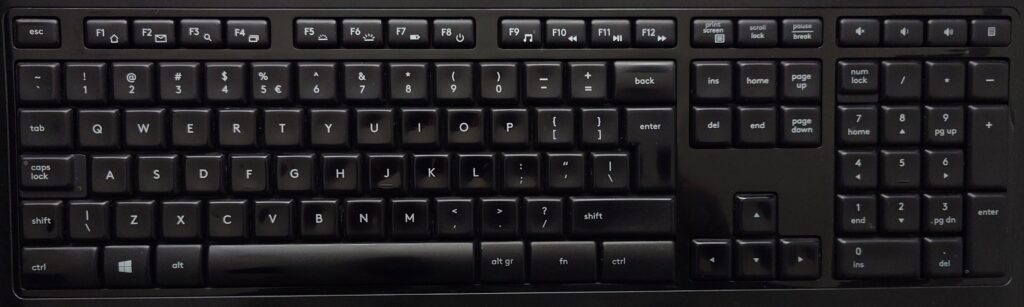
Characters that don’t apear on the keyboard can be displayed by using key combinations like <Alt> + <numbers on numeric keypad>. (Make sure Num Lock is on.) See https://support.microsoft.com/en-US/Word/insert-ascii-or-unicode-latin-based-symbols-and-characters.
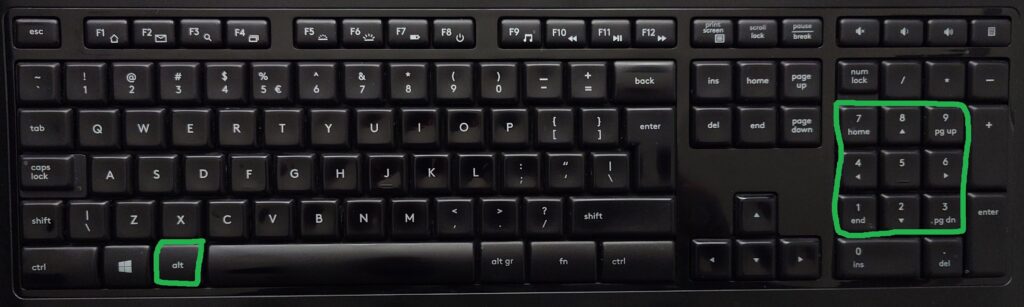
Example: <Alt> + 0176 will display a degree sign °
Techniques like “chained dead keys”, combining characters and compose keys can also be used to create characters not available on the keyboard. This might differ between keyboard layouts and OS locales. Search for more info online.
Refresh (F5) Button
Press the F5 function key or click the Refresh button to jump to another text. The button background colour will stay light blue.
Auto-complete Buttons
The Preset Buttons will select some of the auto-complete buttons to a desired combination. Regardless of the Preset you can toggle the auto-complete buttons by using F6 – F10 function keys or using the mouse to click the buttons. This allows you to choose any combination of auto-complete options.

Punctuation (F6) button
When displayed with a dark blue background, the auto-complete option for Punctuaton is switched on. No need to type punctuation characters like .?!,;:-–—()[]{}'”. They are auto-completed and the cursor moves to the next character.
Caps (F7) button
When displayed with a dark blue background, the auto-complete option for Captial Chararacters is switched on. The typing becomes case-insensitive. This means that the typist doesn’t have to use the key combination Shift + <character key> and only has to type the lower-case characters. It will be automatically converted to upper-case where needed in the text.
Numbers (F8) button
When displayed with a dark blue background, the auto-complete option for Numbers is switched on. No need to type the numbers 0123456789. They are auto-completed and the cursor moves to the next character.
Special Chars (F9) button
When displayed with a dark blue background, the auto-complete option for Special Characters is switched on. No need to type special characters like #$%^&*_+`|\°£. They are auto-completed and the cursor moves to the next character. More special characters may be added over time.
Space (F10) button
When displayed with a dark blue background, the auto-complete option for Space is switched on. No need to use the space bar. Spaces are auto-completed and the cursor moves to the next character.
Scroll Text
Sometimes the text that needs to be typed is a bit longer and takes up more space than is visible in the text field. You can scroll it using the scrollbar on the right of the text field. Or the scroll wheel of your mouse while hovering over the text field.
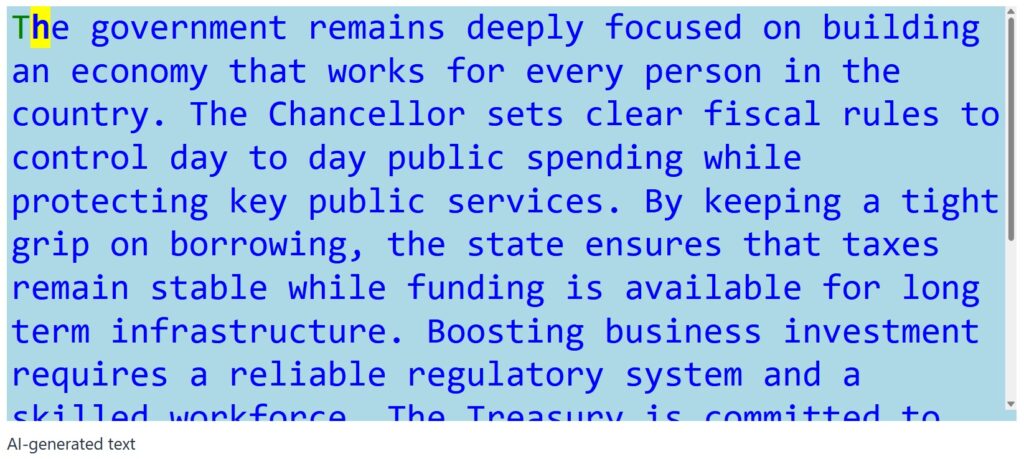
Allthough manual scrolling is not really needed because of the Auto Scroll functionality.
Auto Scroll
Auto-scroll applies for text that is larger than the visible text field when the cursor gets near the end of the visible part. The text is automatically scrolled to the bottom to reveal the next part of the text to the typist, allowing uninterrupted typing experience.
Scroll Down (F11)
For a scrollable text the F11 function key can be used to jump to the bottom.
Scroll Up (F12)
For a scrollable text that has been scrolled down, the F12 function key can be used to jump back to the top.
Dark Mode
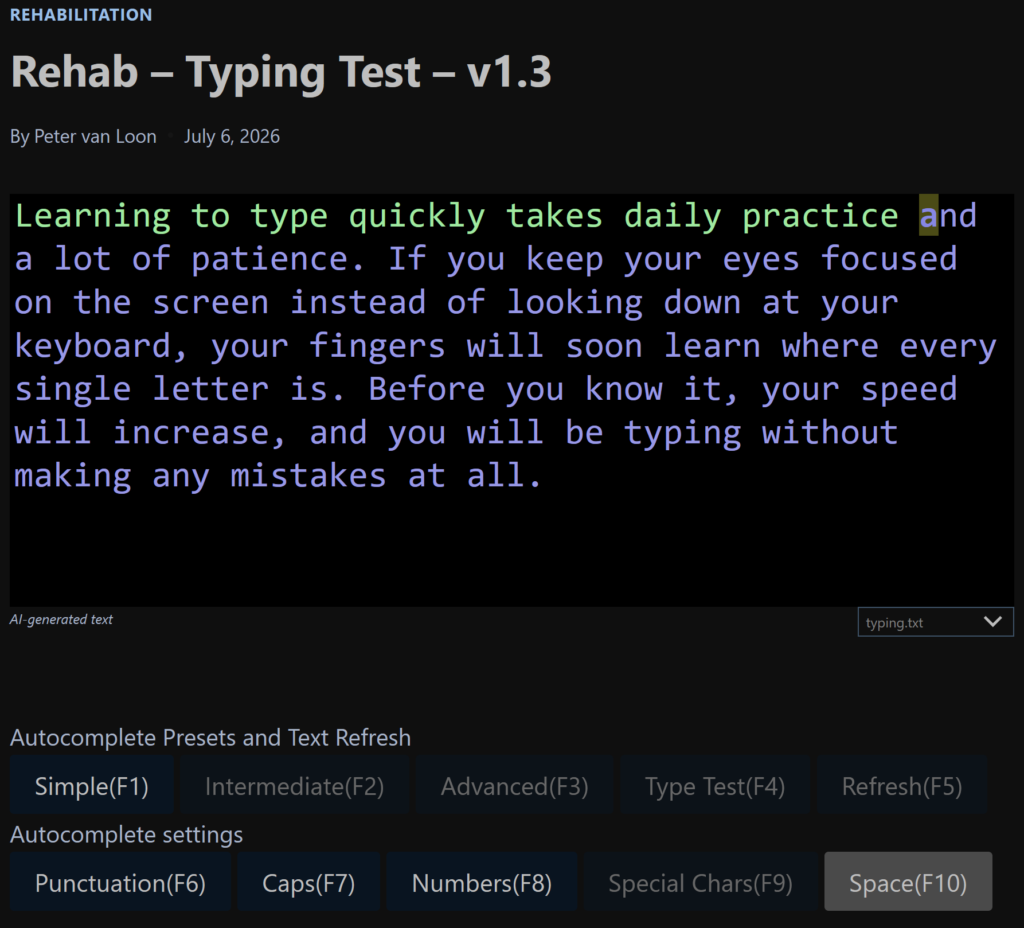
If you prefer a light text on a dark background you can switch to the dark mode.

Locate the floating menu featuring sun and moon icons in the lower right corner of the screen. Select the sun for normal mode and the moon voor dark mode.

Change History
V1.3
- 2026-08-19
- Changed duration to minutes and seconds
- 2026-08-17
- Improved value reset for words/minute calculation
- Show and hide the results more consistently
- Added the number of words in the current text to the results
Fixed issues in this version
Words per minute sometimes seems low (when achieving a a reasonalble char/min value). The duration determintation is not reset when using the pull-down files list to select a new text. Fix needed. Also hide the results when typing starts on the new text.
V1.2
- 2026-08-08
- Added dark mode option by Darkify (to whole website)
- Added auto-complete for several special characters:
- Acute Accent (´) – á, é, í, ó, ú, ý (Á, É, Í, Ó, Ú, Ý)
- Grave Accent (` ) – à, è, ì, ò, ù (À, È, Ì, Ò, Ù)
- Circumflex Accent (^) – â, ê, î, ô, û (Â, Ê, Î, Ô, Û)
- Umlaut / Diaeresis (¨) – ä, ë, ï, ö, ü, ÿ (Ä, Ë, Ï, Ö, Ü)
- Tilde (˜) – ã, ñ, õ (Ã, Ñ, Õ)
- Cedilla (¸) – ç, ģ, ķ, ļ, ņ (Ç, Ģ, Ķ, Ļ, Ņ)
- Ring Above (˚) – å (Å)
- Caron / Hacek (ˇ) – č, š, ž (Č, Š, Ž)
- Macron (¯) – ā, ē, ī, ō, ū (Ā, Ē, Ī, Ō, Ū)
- Ligatures & Special Symbols – æ, œ, ß, ð, ø, þ (Æ, Œ, ẞ, Ð, Ø, Þ)
- Full list of special characters that can currently be auto-completed:
- $%&*+/<=>@^_`|~\°£€¥¢áéíóúýÁÉÍÓÚÝàèìòùÀÈÌÒÙâêîôûÂÊÎÔÛäëïöüÿÄËÏÖÜãñõÃÑÕçģķļņÇĢĶĻŅåÅ蚞ȊŽāēīōūĀĒĪŌŪæœßðøþÆŒẞÐØÞ
Fixed issues in this version
A lot of special characters like umlaut, accent circonflex are not yet supported.
v1.1
- 2026-08-02
- Added words/minute to the results
- Added text file pull-down menu below the Text Field to facilitate a file list per selected difficulty level
V1.0
- 2026-07-06
- First release and public availability
Fixed issues in this version
When clicking refresh, text is not scrolled to the topThe degree sign “°” is not auto-completed. (Alt + 0176 on numeric keypad.)trading.txt is too long for proper scrolling.budget.txt is too long for proper scrolling.health.txt might be too long for proper scrolling.In preset mode F2 with Caps auto-complete swithed off, uppercase is still ignored.Missing extensive manual.Education.txt is to long for proper scrolling.When punctuation auto-complete is on, the last period is not auto-completed.Doesn’t work on tablet and mobile phone. Show warning if detected.Alt code (e.g. Alt + 0128 => €) don’t work!When space auto-complete is off, cursor is not shown at the end of line before wrapping.Occasionally typing freezes. Not clear what causes this. Wasn’t able to reproduce.Code works in preview mode on admin pages, but stays frozen on the normal browser page. Not sure what is happening here!
v0.9
- Development and beta test version
Known issues
- Only tested on Firefox 151.0.2 (64 bits) and
Microsoft Edge 149.0.4022.69 (Officiële build) (64-bits) browsers on Windows 11 - Only tested on a qwerty keyboard
- Green outlined keys in images in manual may not be entirely correct.
- Ocassionly, text isn’t shown on page load. Then select difficulty (F1- F4) and Refresh (F5).
- When the end of the word is at the edge of the right border of the text field pressing space will make the text jump around a bit. Leave in this version.
- Backspace is not supported. The cursor stays in the same place until you type the correct character.
- Refresh (F5) is often fast but sometimes it may take a few seconds to load a text, since it has to retrieve the text from the internet.
Disclaimer
THIS PROGRAM IS PROVIDED “AS IS”, WITHOUT WARRANTY OF ANY KIND, EXPRESS OR IMPLIED, INCLUDING BUT NOT LIMITED TO THE WARRANTIES OF MERCHANTABILITY, FITNESS FOR A PARTICULAR PURPOSE AND NONINFRINGEMENT. IN NO EVENT SHALL THE AUTHORS OR COPYRIGHT HOLDERS BE LIABLE FOR ANY CLAIM, DAMAGES OR OTHER LIABILITY, WHETHER IN AN ACTION OF CONTRACT, TORT OR OTHERWISE, ARISING FROM, OUT OF OR IN CONNECTION WITH THIS SOFTWARE OR THE USE OR OTHER DEALINGS IN THIS PROGRAM.